- Tap Settings > Notifications.
- Touch the right-arrow for each of your apps.
- Slide On to Off or Off to On in the Notification Center window.
This blog is an introduction to using the iPad itself and using the iPad in the classroom with your students. If you are using this blog for training purposes, allow about two hours. The blog/lesson is divided into three parts - (1) Getting to Know your iPad (2) Become Familiar with the Built-in Apps and (3) Classroom Management with your iPad.
Showing posts with label notifications. Show all posts
Thursday, November 29, 2012
Notifications for Apps
To specify whether or not you want a notification of an update, post, breaking news, etc. for the apps you have downloaded:
Labels:
notifications
Do Not Disturb
Use the Do Not Disturb setting on your iPad (or iPhone) to silence calls, alerts, and notifications. The Do Not Disturb feature can be configured to run automatically or manually.
Manual Activation/Deactivation
To activate:
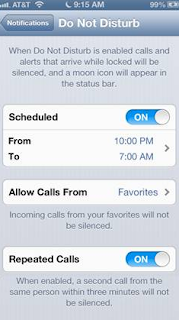
To automatically suppress notifications each day:
Manual Activation/Deactivation
To activate:
- Tap Settings.
- Slide Off to On in the Do Not Disturb option.
- A "Moon" icon will appear next to the time of day (this is called your status bar).
- Tap Settings.
- Slide On to Off next to the Do Not Disturb option.
- The "Moon" icon will disappear.
To automatically suppress notifications each day:
- Tap Settings > Slide Off to On in the Do Not Disturb option.
- Tap Notifications.
- Slide Scheduled to On.
- Modify times.
Subscribe to:
Posts (Atom)
