Thursday, January 24, 2013

Update/Change Your Outlook Password

Inevitably you will need to update/change your password for your Microsoft Outlook email account. When you change your password on your classroom computer, you MUST update/change your password manually on your iPad.  Follow these easy steps:


  1. Tap Settings > Mail, Contacts, Calendars.
  2. Under Accounts, tap Exchange (This is the default name for our work email. Yours will read differently if you named it something else - ie, BISD mail.).
  3. Tap the arrow key next to your email address.
  4. Key your new password.
  5. Tap Done.
Note: These steps work for any Mail account setup on your iPad.


Friday, November 30, 2012

Download / Install an App

From the App Store (or any application service):
  1. Choose category or key name of the app.
  2. Read description and reviews.
  3. Tap on the gray button that says "FREE" or lists the price.  It will change to "BUY APP."
  4. The button now reads "INSTALL APP." Tap again to begin install process.
  5. An icon will be visible on an iPad screen with the word, Loading...  and a blue bar that indicates the progress.
  6. Once it has downloaded to your iPad, the icon will appear with a diagonal banner reading "NEW."

Thursday, November 29, 2012

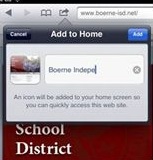
Add Web Link to Home Screen

1. Using Safari, locate the Internet site you want to appear on your home screen as an icon.
2. Tap the Share Button (arrow curved right) located left of the Safari address bar.  
3.  A window appears with many icons. Tap the icon labeled "Add to Home Screen.
 
4. Tap the Add button appearing in the Add to Home window.

Shake Your iPad

Yes! Shake your iPad to:
  1. Delete text keyed in a message.  A popup window appears asking if you would like to Undo Typing or Cancel.
  2. Undo a Paste of text or an image. A pop-up window appears asking if you would like to Undo Typing or Cancel.

Home Button Tricks

Use the Home button to:
  1. Press Home button to return to the page the app you were using is located.
  2. Press Home button to return to page one when browsing other pages on your iPad.
  3. Access the Search page by pressing the Home button when on page 1.
  4. Hold down Home button for approximately six seconds when trapped / frozen in an app.

Conserve Battery Life

Suggestions for conserving battery life.
  1. WiFi: Turn Off when not using.  Settings  / WiFi / Slider to Off.
  2. Bluetooth: Turn Off when not using. Settings / Bluetooth / Slider to Off.
  3. Fetch New Data: Settings / Fetch New Data / Slider to Off in Push window.
  4. Location Services: Settings / Privacy / Location Services / Slider to Off.

Working with Text: Select, Copy, Cut, Paste

Text can be copied, cut, and pasted on the iPad.  Most apps and web pages allow you to easily Copy text.  In order to Cut text from apps, the apps need to support text entry - like Notes of Mail.  Whether Copying or Cutting, text must be Selected first.

Select Text
  1. Tap and Hold your finger on text.
  2. A transparent blue box with anchors appears on the text your finger was touching with a popup with the Select, Select All commands.
  3. Tap Select or Select All.
  4. Drag the anchors to select the text you want to Copy or Cut. 
Copy / Cut Text
  1. Select the text you want to Copy or Cut.
  2. From the popup that appears above your selected text, tap the Copy or Cut command.
  3. The text is now in memory ready to Pasted.
Paste Text
  1. Select, Copy/Cut Text.
  2. Tap and Hold your finger where you want to paste text.
  3. From the popup, tap Paste.

Force Quit Apps

Multitasking lets users simultaneously run apps to quickly switch back and forth between the apps.  Close apps you don't need running as apps running in the background cause the battery to drain at a faster rate.

To Force Quit apps:
  1. Press the Home Button twice to activate the Multitasking Bar.
  2. Tap and hold any app icon that appears in the Multitasking Bar.
  3. When the apps start to jiggle, tap the red minus sign on the apps you want to stop running in the background.  Note-This does NOT delete the app from your iPad.

Notification Center

The Notification Center is 'hidden' your iPad (and iPhone).  Swipe downwards from anywhere on the Status Bar and your new notifications will appear here.  The only notifications that will appear in your Notification Center are those you have set to On in the Settings > Notifications > In Notification Center window.

Notifications for Apps

To specify whether or not you want a notification of an update, post, breaking news, etc. for the apps you have downloaded:
  1. Tap Settings > Notifications.
  2. Touch the right-arrow for each of your apps.
  3. Slide On to Off or Off to On in the Notification Center window.


Do Not Disturb

Use the Do Not Disturb setting on your iPad (or iPhone) to silence calls, alerts, and notifications. The Do Not Disturb feature can be configured to run automatically or manually.

Manual Activation/Deactivation
To activate:
  1. Tap Settings.
  2. Slide Off to On in the Do Not Disturb option.
  3. A "Moon" icon will appear next to the time of day (this is called your status bar).
To deactivate:
  1. Tap Settings.
  2. Slide On to Off next to the Do Not Disturb option.
  3. The "Moon" icon will disappear.
Automatic Activation/Deactivation

To automatically suppress notifications each day:
  1. Tap Settings > Slide Off to On in the Do Not Disturb option.
  2. Tap Notifications.
  3. Slide Scheduled to On.
  4. Modify times.


Wednesday, November 28, 2012

Passcode Lock

To protect data and sensitive information on your iPad, use a passcode. To configure a passcode:
  1. Settings > General > Passcode Lock.
  2. Turn Passcode On.
  3. Simple Passcode is recommended.
  4. Note: To enter a passcode containing more than four digits, leave Simple Passcode off and create your desired password.


Signature

1. Tap Settings.
2. Select Mail, Contacts, Calendar from the sidebar.
3. Tap on the option for Signature.
4. The default text reads "Sent from my iPad."
5. Tap the text box to modify the text and the keyboard appears.
6. Tap Clear to not have a signature appear in email correspondence.


Wi-Fi


  1. Tap Settings icon.
  2. Tap WiFi (left sidebar).
  3. If Wi-Fi is Off, Slide to On.
  4. Tap Other and ignore other Wi-Fi networks that appear.
  5. Key webauth in the Name box of the Other Network window.
  6. Security needs to be set to None.
  7. Tap Join.
  8. If you see Auto-Join, Slide to On.
  9. Tap Safari in the Settings left sidebar.
  10. Block Pop-Ups needs to be Off. This allows the authentication page to appear.
  11. Key your BISD login and password in the Authentication page whenever it appears.

Wednesday, February 29, 2012

Screenshot

Simultaneously depress the home button and sleep/wake button to take a screenshot of anything appearing on your iPad screen.  The screenshot becomes part of the camera roll.

Wednesday, February 15, 2012

Videos

Download movies, TV shows, podcasts and music videos. Special features such as chapters, subtitles, alternate audio, and closed captioning are supported.

Photo Booth

Photo Booth uses the front camera takes photos with a fun effects.  Twist up your face, double your head, or make yourself look like an alien, a comic book character, or an X-ray. Everything in Photo Booth automatically appears in your Camera Roll.
http://www.apple.com/ipad/built-in-apps/photobooth.html

Activity
1. Make a face.
2. Tap an effect.
3. Snap your photo.

Notes

This app is great for taking notes in class, creating a to-do list, or jotting down ideas.  Notes are organized by date and time.  In portrait view, Notes appears as one big note. In landscape view, Notes appears as a list on the left side.  The first line of any note is what you see on the left side of the window.  Your current note will be circled in red for easy identification. Notes can be emailed and/or printed.

Activity
1. Create a note beginning with 'iPad Intro.'
2. Create a note beginning with 'iPad Things to Remember.'
3. Create a note beginning with 'My Students could use Notes for...'
4. At the end of our training session, email these notes to yourself and me.

Camera

The built-in camera lets you take both photos and videos. Viewing, emailing, uploading to your computer or Internet are all things you can do with camera app.

Activity:
1. Tap Options to activate and deactivate grid.
2. Camera mode:
    a.  Using camera on back of iPad, take four photos.
    b.  Using camera on front of iPad, take four photos.
3. Tap Camera Roll and select a photo. Set as Wallpaper and Email to yourself.
4. Video mode. Create a 10 second video segment demonstrating how to use the front and rear cameras on the iPad.

iBooks

Watch iBooks video. The iBookstore has many books available for no cost.  Preview a book by downloading the sample. E-textbooks are indescribably awesome.  Major publishers - Pearson, McGraw-Hill, Houghton-Mifflin Harcourt - are creating e-textbooks now. See the Gallery of Titles available now. Amazing! Watch how e-textbooks come alive.  Worth reading - Apple Joins e-Textbook Party

 Activity
1. Tap Store. Download four books.
2. Arrange your shelf.
3. Open a book:
    a. change the size of text to suit you.
    b. bookmark four pages.
    c. use the search feature to find something specific.
    d. highlight six instances.
    e. create four notes.
    f.  use the definition feature.