- Choose category or key name of the app.
- Read description and reviews.
- Tap on the gray button that says "FREE" or lists the price. It will change to "BUY APP."
- The button now reads "INSTALL APP." Tap again to begin install process.
- An icon will be visible on an iPad screen with the word, Loading... and a blue bar that indicates the progress.
- Once it has downloaded to your iPad, the icon will appear with a diagonal banner reading "NEW."
Friday, November 30, 2012
Download / Install an App
From the App Store (or any application service):

Thursday, November 29, 2012
Add Web Link to Home Screen
1. Using Safari, locate the Internet site you want to appear on your home screen as an icon.
2. Tap the Share Button (arrow curved right) located left of the Safari address bar.
3. A window appears with many icons. Tap the icon labeled "Add to Home Screen.
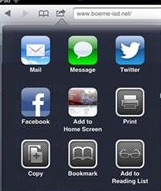
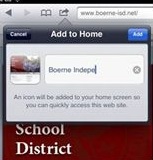
4. Tap the Add button appearing in the Add to Home window.
2. Tap the Share Button (arrow curved right) located left of the Safari address bar.

3. A window appears with many icons. Tap the icon labeled "Add to Home Screen.

4. Tap the Add button appearing in the Add to Home window.
Shake Your iPad
Yes! Shake your iPad to:
- Delete text keyed in a message. A popup window appears asking if you would like to Undo Typing or Cancel.
- Undo a Paste of text or an image. A pop-up window appears asking if you would like to Undo Typing or Cancel.
Home Button Tricks
Use the Home button to:
- Press Home button to return to the page the app you were using is located.
- Press Home button to return to page one when browsing other pages on your iPad.
- Access the Search page by pressing the Home button when on page 1.
- Hold down Home button for approximately six seconds when trapped / frozen in an app.
Conserve Battery Life
Suggestions for conserving battery life.
- WiFi: Turn Off when not using. Settings / WiFi / Slider to Off.
- Bluetooth: Turn Off when not using. Settings / Bluetooth / Slider to Off.
- Fetch New Data: Settings / Fetch New Data / Slider to Off in Push window.
- Location Services: Settings / Privacy / Location Services / Slider to Off.
Working with Text: Select, Copy, Cut, Paste
Text can be copied, cut, and pasted on the iPad. Most apps and web pages allow you to easily Copy text. In order to Cut text from apps, the apps need to support text entry - like Notes of Mail. Whether Copying or Cutting, text must be Selected first.
Select Text
Select Text
- Tap and Hold your finger on text.
- A transparent blue box with anchors appears on the text your finger was touching with a popup with the Select, Select All commands.
- Tap Select or Select All.
- Drag the anchors to select the text you want to Copy or Cut.
- Select the text you want to Copy or Cut.
- From the popup that appears above your selected text, tap the Copy or Cut command.
- The text is now in memory ready to Pasted.
- Select, Copy/Cut Text.
- Tap and Hold your finger where you want to paste text.
- From the popup, tap Paste.
Force Quit Apps
Multitasking lets users simultaneously run apps to quickly switch back and forth between the apps. Close apps you don't need running as apps running in the background cause the battery to drain at a faster rate.
To Force Quit apps:
To Force Quit apps:
- Press the Home Button twice to activate the Multitasking Bar.
- Tap and hold any app icon that appears in the Multitasking Bar.
- When the apps start to jiggle, tap the red minus sign on the apps you want to stop running in the background. Note-This does NOT delete the app from your iPad.
Subscribe to:
Posts (Atom)